Create a compressed folder.
Right-click on your desktop or whatever location you’d like your folder
to be. Select New, then click Compressed (zipped )Folder. This will
make a new .zip file that you can add files to as if it were a folder.
2
Move your files. Copy and paste or click and drag your files into the new .zip file. You can move as many files and folders over as you’d like.
3
Add a password. Open the
.zip file. Click File, then select Add a Password. Enter a password of
your choosing, then enter again to confirm it. You will now need this
password every time you access the .zip file.
Other users will still be able to see the contents of the file, but they will not be able to access them without the password.
4
Delete the original.
Once the .zip file is created, you will have two copies of your folder:
the original and the .zip file. Delete or move your original so that it
cannot be accessed.
Method 2 of 3: Windows Vista and Later
1
Download and install a third-party compression software.7-zip is one of the most popular free options available. This guide will be based on using 7-Zip.
2
Create the compressed file.
Select the folder that you want to password protect. Right-click and
select 7-Zip from the menu. From the second menu, select “Add to
archive…” This will open 7-Zip.
3
Adjust the settings. You
can rename the file that will be created. Choose .zip from the “Archive
format” menu if you want the folder to be compatible on systems without
7-Zip installed.
4
Add a password. On the
right side of the 7-Zip window, there will be two fields to enter and
confirm a password for the file. You can also select your form of
encryption, and whether or not you want the names of the files encrypted
as well. Click OK when you are done.
5
Delete your original.
Creating a compressed file will leave you with two copies of your data:
the original and the compressed file. Delete or move the original so
that it cannot be accessed.
Method 3 of 3: Mac OS X
1
Create an encrypted sparse image.
To password protect files and folder in Mac OS X, you will be creating
an encrypted disc image, which you will mount whenever you want to
access the files. You will specify the size that you want the image to
be, but it will only occupy as much space on your hard drive as the
contents do.
2
Open the Disk Utility tool.
You can find this in the Utilities folder which is in the Applications
folder. Once the program is running, click File, then select New. Pick
Blank Disk Image. A new window will open; choose Sparse Disk Image from
the Image Format menu.
3
Choose a size. There
will be a list of predetermined sizes that you can choose from, or you
can enter your own with Custom. Pick a size that is larger than the size
of all the files you are adding, that way you can add more later if
you’d like.
4
Choose your encryption.
You’ll have a choice between 128-bit or 256-bit. 128-bit AES encryption
is very strong, and most users won’t need anything higher than that.
Encrypting in 256-bit can take significantly longer.
5
Name the image. This is the name that will appear in your system. Click Create. You will be prompted to enter and confirm a password.
Uncheck the Remember Password option to make sure that the password needs to be entered every time the image is accessed.
6
Fill the image. Once you
create the image, the file and mounted image will both appear. Add
files to the mounted image, then drag it to the trash can to unmount it.
When you want to access them again, open the image file. You will be
prompted for the password and then the image will be mounted.
Of all experiences in nature, none are closer to us than the
characteristics of our own bodies. However, the true nature of the human
body is still being uncovered, and a host of bizarre surprises, eerie
findings and at times frightening facts await those who study the
incredible machine. In this account, we will explore 10 of the most
incredible or lesser known traits of the human body.
#COUNTDOWN...................
10. Allergies as Cancer Prevention
Airborne allergies
such as hay fever are among the worst allergies one can experience.
While foods that trigger allergies may be readily avoided and many
chemical exposures can be reduced, avoiding grass, dust, pollen and mold
may be exceedingly difficult. However, scientific research indicates
that there may be a bright side to the scourge of spring and summer.
Exposure to airborne allergens appears to tinker with the immune system
in such a way that the risk of cancer is mitigated in allergy suffers.
Preliminary research suggests statistically significant reductions in
cancer among human study samples suffering from hay fever due to an
immune stimulation effect similar to inoculation.
9. Syphilis: A KTI
Sexually transmitted infections are a scourge of modern society
originating in behavioral, socio-economic and medical education
shortcomings. Syphilis
is a mutilating and eventually fatal disease if not treated that is
often flagged as prime example of the STI problem. Believed to have
originated from ancient human deviance with animals or unsafe consumption
syphilis is widely seen as a sexually transmitted illness. However, the
illness is also transmissible through mere kissing as a Kissing
Transmissible Infection (KTI). Spirochete bacteria infection manifests
in the form of oral sores, and even boils on the hands and face. The
first manifestation during the infectious stage is a small chancre sore
in the mouth. If the patient kisses another human, they may become
infected with the diseases in certain cases.
8. Sense and Synesthesia
Humans frequently consider the possibility of a sixth sense. However,
humans possess far more than 5 distinct senses. Vision is actually a
combination of senses for light and color, while evidence shows that
humans share some of the avian ability to detect magnetic fields. Humans
also have the ability to detect their relative position, which is known
as procerioception.
The diversity of human sensory experience becomes even more
complicated in the disorder known as synesthesia, where sounds may be
associated with particular colors, or colors may be attributed to the
descriptions of letters. Human senses are surprisingly subjective and
may become highly confused as the brain interprets raw data collected
through the body’s many sensory systems.
7. Allergic to Work—Literally
Accusing someone of being “allergic to work”
is a frequently used method of encouraging industry or taking laziness
to task. But for those with Exercise-induced anaphylaxis, being allergic
to work is no joking matter. In fact, it may be a disabling reality
that is at worst, life threatening. Suffers break out in hives upon
exercise, often in concert with exposure to an aggravating food. The
exact mechanism of the reaction is unknown, but a related condition
known as Cholinergic Urticaria triggers allergic symptoms upon exposure
to heat. It is thought that production of stress chemicals and changes
in metabolism associated with exercise set the stage for the
anaphylactic reactions to occur. Without treatment, complications can
lead to potentially fatal shock.
6. Eye & Breast Tissue Discrepancies
Humans, like many other animals display a startling degree of
symmetry between body parts. Surprisingly, a small number of humans may
be born with Heterochromia iridum, or dual eye coloration. One eye may
be blue, and the other brown or hazel. Causes of eye color discrepancies
may stem from genetic mutations, combinations of distinct cells.
Although most people with this “condition” are born with it, rare cases
of medication induced Heterochromia
have been reported. A more common discrepancy is in breast size. Human
females tend to have a slightly larger left breast than the mammary
gland on the right. Additionally, the vestigial breast tissues in males
may display the same discrepancy.
5. Herpes Keratitis Blindness
In developed countries, up to 60 percent of the population caries the Herpes Simplex virus,
responsible for the distressing skin lesions euphemistically referred
to as “cold sores”. While this viral disease is seen by many people as
an unappealing nuisance, Cold Sores are in fact potentially dangerous,
and rank as a leading cause of blindness worldwide. Herpes Simplex
resides in the facial nerves, and emerges into the skin causing lesions
during active phase. However, the virus may also inhabit the optic and
trigeminal nerves. During the active phase, virulent herpes can then
form lesions on the cornea of the eye. Complications of the outbreaks
may lead to blindness through keratosis and subsequent scarring, or even
necrosis of eye tissues.
4. Organ Transplant Cell Memory
Traditional western models of psychology and physiology tend to view
the brain as the center of human intelligence where thoughts are formed
and memories are stored. However, numerous reports from organ donation
recipients claiming changes in personality have sparked interest in some
researchers who believe that memories and thoughts that do not appear
to be their own may originate from a more systemic consciousness that
features cell memory.
Cases where food preferences and even sexual orientation have switched
have been reported, and in one especially eerie case, the recipient of a
heart from a murder victim led police to the killer. It is unknown
whether these changes could be purely stress related, or whether
something much more mysterious is at work when human body parts are
merged…
3. Optical Inversion
When we look at the world around us, we must remember that the veil
of human perception means things are not always what they seem. When you
glance at an object, the image received actually appears inverted on
the retina. Our eyes in fact see everything upside down, but incredibly,
our brain compensates by default, allowing us to perceive the world
right side up. The brain’s ability to be misled in this regard presents
an eerie insight into the potential for manipulation of human
experience. In a series of experiments,
volunteers wore lenses to turn the world upside down. This reversal
caused the brain of the subjects to stop compensating for the retinal
inversion in order to see upright. When the lenses were removed, the
participants saw upside down for a time.
2. Extra Ribs
Humans are normally equipped with 24 symmetrical ribs to protect the
vital organs, but around 1 in 500 people are born with an extra rib
extending from the neck and shoulder section, known as the thoracic outlet.
The cervical rib, or in even rarer cases, extra pair may interfere with
the blood supply to the arm, causing a loss of pulse when the arm is
moved in certain directions. The vestigial rib is believed to be
connected with genes that suppress cancer risks, but the nature of this
effect unknown. In some cases, complications include numbness, tingling,
coldness in the hands and most disturbingly, a protruding sensation in
the arm. The ribs are useful in other mammals, but are vestigial in
humans.
1. Born with Teeth
Human babies are certainly not as precocious as many other mammal
species such as ungulates that are born ready to walk on their own.
Teeth in humans normally start to appear after 6 months, but around 1 in
2,000 infants are born with neonatal teeth
appearing through the gumline. Although mildly startling, newborns with
teeth are often perfectly healthy, as the condition may not be
associated with harmful genetic mutations. The often loose teeth may
form a chocking hazard, and are known to be capable of inflicting rather
painful bites if the infant is allowed to nurse. Normally, only one or
two teeth appear in cases of neonatal dentition development.
Simple and easy ways to keep your computer safe and secure on the Internet
Introduction
Let's face it, the Internet is not a very safe place. There are hackers
trying to access your computer, worms trying to infect you, malicious
Trojans disguised as helpful programs, and spyware that reports your
activities back to their makers. In many cases those who become infected
unknowingly become a breeding ground for unwanted programs and criminal
activity. It does not have to be this way. With proper education and
smart computing the Internet can be a safe, useful, and fun place to
visit without having to worry about what is lurking around the corner.
This tutorial was created to provide tips and techniques for smart and
safe computing. When using these techniques you will not only protect
yourself and your data from hackers and viruses, but also keep your
computer running more smoothly and reliably. The advice in this tutorial
applies to all computer users and all operating systems, but we have
tried to point out specific steps for various operating systems as it
becomes necessary.
What you need to know to keep your computer safe on the Internet
Tip 1: Always install Operating System updates
The most important steps for any computer user is to always install
updates, especially security updates, when they become available for
your operating system. When operating systems are developed, bugs, or
programming errors, are unfortunately created that could cause security
vulnerabilities or make your computer act unexpectedly. Though the
developers spend many hours trying to prevent these bugs, they are
ultimately human, and bugs occur. It does not matter what operating
system we are talking about, bugs are always
introduced. Due to this, companies will routinely release updates and
patches to fix any security vulnerabilities or errors as they are
discovered.
In order for your computer to operate smoothly and safely it is
imperative that all users install updates, especially security updates,
as they are released. By not installing these updates you leave your
computer at risk from remote users hacking into them or viruses
exploiting these bugs to gain access to your computer. Thankfully, all
modern operating system provide easy methods for installing new updates.
In fact, most of these methods do all the work for you and just require
you to click a prompt to allow the updates to install. Therefore, there
really is no reason not to install them.
Tip 2: Keep your installed applications up-to-date
A common method that computer infections use to infect your computer
are security vulnerabilities in your installed programs. Common programs
that are targeted due to their large install base are web browsers,
Microsoft Office, Adobe Reader, Adobe Flash, Adobe Shockwave, and Oracle
Java. In order to make your computer as secure as possible, you need to
make sure these programs are updated when new security fixes are
released. The problem is that many people just ignore alerts about new
updates, even though these updates fix security problems that could
allow hackers into your computer.
If you are prompted by a known application that you commonly use
stating that there is a new update, just click the button to allow it to
be updated. This is especially true for web browsers, which are
commonly targeted by malicious code on web sites. If there is a new
version of your web browser available, you should upgrade it so that any
security vulnerabilities are fixed.
If you use Windows, there is a great program called Secunia PSI that
automatically scans your computer for applications and automatically
updates them for you.
Tip 3: Do not use the same password at every site
It has now become common to hear about a company who was hacked and
the hacker was able to access the company members email addresses and
passwords. If you use the same password at every site, and one of those
sites was hacked, the hacker now has your account information everywhere
that you have an account. They can now login to your email, see what
other accounts you have, banks that you use, etc and gather even more
private information about you.
It is very important to use a different password at every site where
you have an account. Unfortunately, we all know it's not realistic and
even possible to remember a different password for every account you may
own. To help with that you can use a password management program like Keepass
to help you store your account information for each site you login to.
Keepass also contains plugins that allow you to automatically login to
sites you visit using the information stored in its database.
If you would rather not store your passwords in another program, then
creating a standard password format is better than using the same
password at each site. For example, for each site you visit you can
create a password in the format <year born><sitename>!55. So
if you were registering an account at Bleepingcomputer and you were
born in 1975, you could use the password 1975bleepingcomputer!55. Then
at CNN you could have an account 1975cnn!55. As you can see you are now
using a different and strong password at each site, but you have an easy
to remember format that you can use to determine the password.
Tip 4: Install and be sure to update your anti-virus software
It is very important that your computer has antivirus software running
on your machine. By having an antivirus program running, files and
emails will be scanned as you use them, download them, or open them. If a
virus is found in one of the items you are about to use, the antivirus
program will stop you from being able to run that program and infect
yourself.
Is it also important to note that there is no point in running an
antivirus program if you do not make sure it has all the latest updates
available to it. If you do not update the software, it will not know
about any new viruses, trojans, worms, etc that have been released into
the wild since you installed the program. If a new infection appears in
your computer, the outdated antivirus program will not know that it is
bad, and not alert you when you run it and your computer becomes
infected. It is imperative that you update your Antivirus software at
least once a week (Even more if you wish) so that you are protected from
all the latest threats.
It is also suggested that you install a free anti-malware scanner in
addition to your normal anti-virus program. These free anti-malware
scanners do not offer real-time protection unless you upgrade to the
commercial version, but offer excellent detections when scanning with
them periodically. Two recommended Windows anti-malware programs are
MalwareBytes
Tip 5: Use a firewall
The importance of using a Firewall on your computer or on your network
cannot be stressed enough. Just because you have all the latest
security updates, you are still susceptible to unreported, unpatched, or
unknown vulnerabilities that a hacker may know about. Sometimes hackers
discover new security holes in a software or operating system long
before the software company does and many people get hacked before a
security patch is released. By using a firewall the majority of these
security holes will not be accessible as the firewall will block the
attempt.
Tip 6: Backup your data!
Backing up your data is not necessarily a way of keeping your computer
safe, but it is a way of keeping your data safe. As you use your
computer there may come a time that you cannot find a document or your
hard drive fails. Having a regular backup of your data available saves
you from the anguish of losing those hours of work or precious baby
photos.
Both Windows and MacOS have free built in backup software so please be
sure to use them to protect your data. In Windows, you can use Windows
Backup program and Macs have the Time Machine program. If you wish to
use a third-party program, we have listed two tutorials below that
utilize free backup programs.
Tip 7: Enable the display of file extensions
It is important to enable file extensions so you can see the complete
file name. A file extension, or file name extension, is the letters
immediately shown after the last period in a file name. Many viruses
that are sent via email as attachments contain two periods. For example,
picture.jpg.exe. Since Windows is by default
configured to not display extensions, Windows will strip off the .exe
and instead the file will appear as picture.jpg. To you
this looks like harmless image file. Once you click on it, though,
instead of an image opening, it actually runs the virus and you become
infected. Though a Mac hides file extensions by default as well, this is
less of a problem on that operating system.
Tip 8: Do not open attachments from people you do not know
Don't open an attachment from someone you do not know. Simple as that.
If someone you do not know sends you something, just delete it. If you
receive an attachment from someone you know well, then you should still
never open attachments that end with the following extensions: .exe, .pif,.com, or .bat. For more information about file extensions, please see step 3.
Attachments are a common way that computer infections spread from
computer to computer. As described in the previous tip, malware writers
exploit default settings on operating systems to make attachments
harmless looking so that you will then open them.
If you really want to see the file, first scan it by saving it to a
folder on your drive and then scanning it using a site like Virustotal. You can also email the person directly and ask if they actually sent you that file.
Tip 9: Ignore emails that state you won a contest or a stranger asking for assistance with their inheritance
A common online scam are emails from strangers that state that you won
a contest or that they need help transferring money or receiving an
inheritance. These are all scams where they are trying to get your
personal information in order to perform identify theft or want to use
you as part of a money laundering scheme. When you receive these emails
just delete them.
Tip 10: Watch out for online and phone support scams
Phone support scams are becoming more common and involve receiving a
phone call from someone pretending to be from Google, Microsoft, or
another large company. They state that they have detected you are having
computer problems and are offering free remote diagnostics to see what
is wrong. After they take control of your computer and pretend to look
at various things, they state that your computer has a lot of problems
and then try to sell you a support contact or software. Microsoft,
Google, and other large companies will NEVER call you out of the blue and do this. If you do receive a call like this say "No thanks" and hang up.
Just like phone support scams, online support scams are common as
well. These scams come in the form of online advertisements that display
misleading messages stating that your computer is having an issue. Just
like the phone support scams, these are just advertisements from people
who are trying to sell you software or services. Just ignore any
advertisements and messages you see like this.
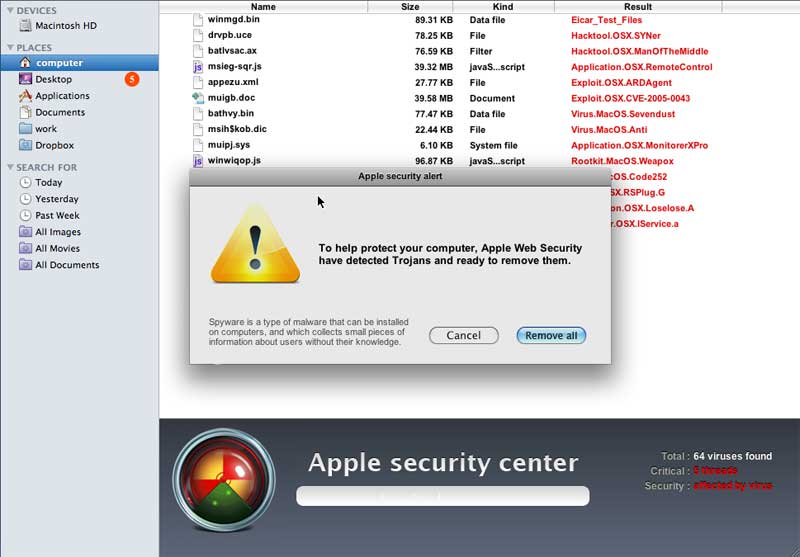
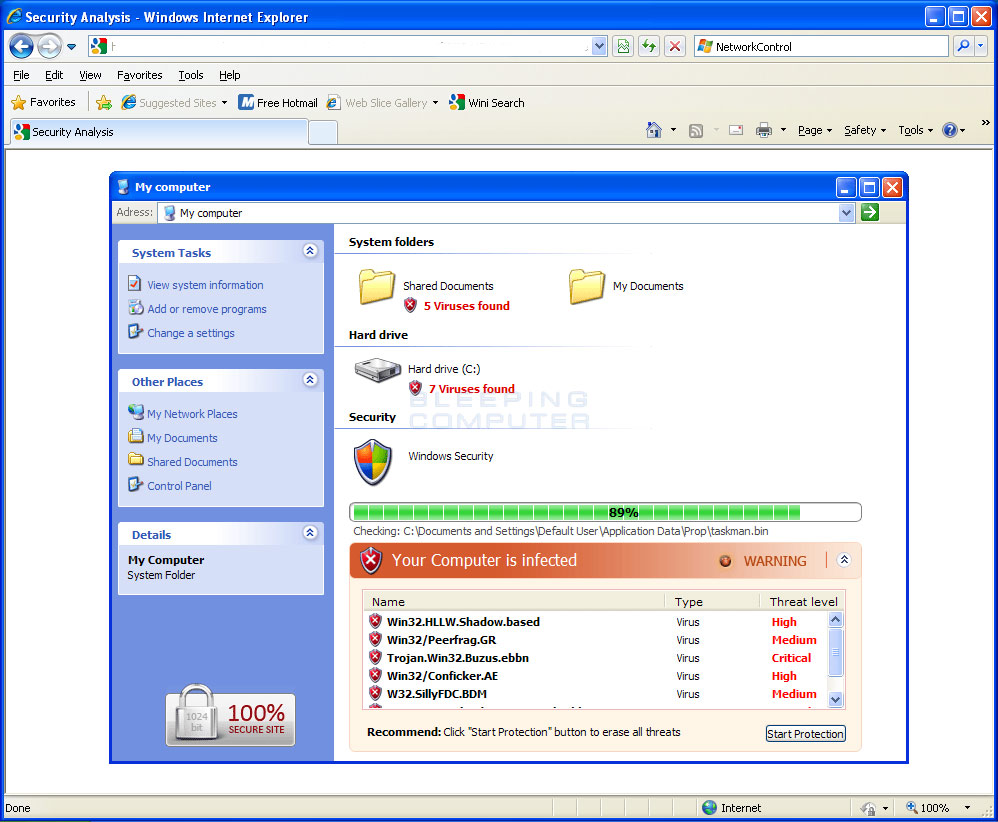
Tip 11: Ignore web pop ups that state your computer is infected or has a problem
When browsing the web, it is not uncommon to be shown an advertisement
that pretends to be an online anti-virus program. These advertisements
will pretend to scan your computer and then state you are infected. It
will then prompt you to install a piece of software.
Examples of these types of advertisements can be seen below:
Fake Mac & Windows Online Scanners
Click on each image to enlarge
If you see these types of advertisements, just close your browser to
close the message. If you are having issues closing your browser, then
you can use the Alt+F4 keys in Windows or the Apple
Key+Q in MacOS to force the program to close. If the browser refuses to
close, then you can use these guides to help you close the programs:
How to force quit a program on a Mac
How to close a program in Windows
Tip 12: Ignore and close web pop ups that pretend to be a Windows alert
Another tactic some software vendors use is to display web pop ups
that pretend to be an alert from your operating system. These alerts
look just like a Windows or Mac window, but are instead a web popup
trying to get you to click on the ad.
If you see these types of advertisements, just close your browser to
close the message. If you are having issues closing your browser, then
you can use the Alt+F4 keys in Windows or the Apple Key+Q
in MacOS to force the program to close. If the browser refuses to
close, then you can use these guides to help you close the programs:
How to force quit a program on a Mac
How to close a program in Windows
Tip 13: Some types of web sites are more dangerous than others
Some types of sites are more prone to distribute malware or use
deceptive techniques to have you click on ads. With this said, do not
visit porn sites! I know some of you may not be happy about this, but
the reality is that many sites in this category happily try to infect
machines who visit them.
Other sites that you can commonly become infected from are Warez and
Crackz sites. Not only is pirated software illegal, but the sites that
distribute them are a breeding ground for malware.
Tip 14: Be vigilant when using Peer-To-Peer Software
Using a program like Bittorrent for legitimate applications is
perfectly fine. On the other hand, if you use P2P applications for
copyrighted movies or software there is a good chance that they may
contain Trojans as well. It is very common for malware developers to
distribute malware on P2P networks that pretends to be a program
required to view a movie or play a game. Therefore, it is strongly
suggested that you do not use Peer-to-Peer software for illegal
activities as you will probably get what you pay for.
Tip 15: When installing a piece of software, watch out for "bundled" tool bars and programs that you may not want
A common practice used by free programs is to bundle others programs
with them. This allows the developer to offer a program for free, but
still earn revenue by bundling tool bars and other software in them.
When installing a program, please read through all the prompts and
instructions carefully. If you come to a screen where the program is
asking if you wish to install another companies tool bar or program,
then please do some research as to whether or not you think these
programs will be useful to you. If you do not wish to install these
bundled programs, then uncheck the option to install them.
On a general note, having too many browser tool bars can negatively
affect the functionality of your web browser. As most browsers have
built-in search fields that you can customize, there is typically no
need to install separate search tool bars unless they contain specific
functionality that you would find useful.
Tip 16: When installing a piece of software, read the End User License Agreement (EULA) so you know what your getting into
When you install a piece of software be sure to read the end user
license agreement, or EULA, before allowing it to install. By law, an
EULA must contain information on how this program will interact with
your computer and use your private information. If you find that a
particular program is using your personal data or tracking your computer
use, then you can use that information to determine if you really want
to continue installing the software.
Forgot your administrator password? Don't panic, it happens to some
other people too, and you have found the solution! The following
instructions will show you step-by-step how to reset your local Windows
password. This only works for local user accounts, however, not domain
accounts.The password recovery tool from this page is written by Petter
Nordahl-Hagen, and the original information, as well as the downloadable
tool, can be found from his website. According to the author, this tool should work for Windows NT/2000/XP/Vista.
WARNING! Users who have EFS encrypted files on the Windows XP or
Vista computers will loose access to the EFS encrypted files after
recovery of your password!
Use this trick at your own risks
The tool to reset your password can be downloaded here.
I. Download the bootdisk:
Download the bootdisk, which includes the password recovery tool here. The file contains the ISO CD image.
Unzip (extract) the ISO file and burn it to a CD. Note that
this is an ISO file, you must burn it to CD as an ISO image, not as a
"data" file. If you're not sure how, see this article.
Also, the image is bootable, you need to burn the image to a CD using
the image burning feature; do not extract the contents of the ISO and
burn them to the CD, you'll end up with a CD that can't boot!
II. Understanding the process:
You'll use the bootdisk created from the above steps to bootup
your computer, which you want to reset your administrator password.
You'll be asked for things like: which drive is the boot
drive, which path to the SAM file, etc.. but don't worry, details will
be provided.
Once you have selected an account to reset the password,
you'll need to type in a new password; however, it is highly recommended
to use a BLANK password at this point, then you can change your
password later in Windows.
Follow the prompts to the end. You'll need to save the changes at the end!
III. OK! Enough talking. Here are the steps:
Startup your computer with the bootdisk created above. You should see a welcome screen following with a prompt:
boot:
Just wait, the bootup process will continute automatically. Then you should see a screen similar to this:
	=========================================================
	. Step ONE: Select disk where the Windows installation is
	=========================================================
	....
	NT partitions found:
	 1 :   /dev/sda1    4001MB  Boot
	 2 :   /dev/sda5    2148MB

	Please select partition by number or
	a = show all partitions, d = automatically load new disk drivers
	m = manually load new disk drivers
	l = relist NTFS/FAT partitions, q = quit
	Select: [1]
Notice the last line "Select: [1]" which shows the [1] as default selection because the tool detected the bootup partition is [1]. This might be different on your own machine, so you should review the list shown under "NT partitions found:". The partition with the word "Boot" should be selected.
Hit Enter once you confirm the selection. You should see a similar screen as follows:
	=========================================================
	. Step TWO: Select PATH and registry files
	=========================================================
	....
	What is the path to the registry directory? (relative to windows disk)
	[windows/system32/config] :
Notice the last line "[windows/system32/config]"
which shows the default path. This was also detected by the tool. If
the path is correct, hit Enter, or if you wish to enter a different
path, enter it now then hit Enter.
Here are the paths for different versions of Windows:
- Windows NT 3.51: winnt35/system32/config
- Windows NT 4 and Windows 2000: winnt/system32/config
- Windows XP/2003 (and often Windows 2000 upgraded from Windows 98 or earlier): windows/system32/config
Once you hit "Enter", you should see the next screen similar to the following:
	-r--------    1 0        0          262144 Jan 12 18:01 SAM
	-r--------    1 0        0          262144 Jan 12 18:01 SECURITY
	-r--------    1 0        0          262144 Jan 12 18:01 default
	-r--------    1 0        0         8912896 Jan 12 18:01 software
	-r--------    1 0        0         2359296 Jan 12 18:01 system
	dr-x------    1 0        0            4096 Sep  8 11:37 systemprofile
	-r--------    1 0        0          262144 Sep  8 11:53 userdiff

	Select which part of registry to load, use predefined choices
	or list the files with space as delimiter
	1 - Password reset [sam system security]
	2 - RecoveryConsole parameters [software]
	q - quit - return to previous
	[1]
Hit "Enter" with the default option selected "[1]". Then ...:
	=========================================================
	. Step THREE: Password or registry edit
	=========================================================
	Loaded hives:

	  1 - Edit user data and passwords
	  2 - Syskey status & change
	  3 - RecoveryConsole settings
		  - - -
	  9 - Registry editor, now with full write support!
	  q - Quit (you will be asked if there is something to save)

	What to do? [1] -> 1
Hit "Enter" with the default option selected "[1]". Then ...:
	===== chntpw Edit User Info & Passwords ====

	RID: 01f4, Username: <Administrator>
	RID: 01f5, Username: <Guest>, *disabled or locked*
	RID: 03e8, Username: <HelpAssistant>, *disabled or locked*
	RID: 03eb, Username: <pnh>, *disabled or locked*
	RID: 03ea, Username: <SUPPORT_388945a0>, *disabled or locked*

	Select: ! - quit, . - list users, 0x<RID> - User with RID (hex)
	or simply enter the username to change: [Administrator]
Hit "Enter" with the default option selected "[Administrator]",
or select another user account. Here you can enter the full user
account surrounded by < and >, CASE-SENSITIVE, or enter the RID
number (i.e. 0x1f4). Assuming you select the Administrator account, you
should see the following screen:
	RID     : 0500 [01f4]
	Username: Administrator
	fullname:
	comment : Built-in account for administering the computer/domain
	homedir :

	Account bits: 0x0210 =
	[ ] Disabled        | [ ] Homedir req.    | [ ] Passwd not req. |
	[ ] Temp. duplicate | [X] Normal account  | [ ] NMS account     |
	[ ] Domain trust ac | [ ] Wks trust act.  | [ ] Srv trust act   |
	[X] Pwd don't expir | [ ] Auto lockout    | [ ] (unknown 0x08)  |
	[ ] (unknown 0x10)  | [ ] (unknown 0x20)  | [ ] (unknown 0x40)  |

	Failed login count: 0, while max tries is: 0
	Total  login count: 3

	* = blank the password (This may work better than setting a new password!)
	Enter nothing to leave it unchanged
	Please enter new password: *
At the prompt "Please enter new password", Enter the * for a blank password (HIGHLY RECOMMENDED!) then press Enter
	Please enter new password: *
	Blanking password!

	Do you really wish to change it? (y/n) [n] y
At the prompt, type in "y", then press Enter. Note that the default option is "n".
	Do you really wish to change it? (y/n) [n] y
	Changed!

	Select: ! - quit, . - list users, 0x - User with RID (hex)
	or simply enter the username to change: [Administrator] !
Enter the "!" to go back to the main menu. Then select "q" at the following menu to quit:
	<>========<> chntpw Main Interactive Menu <>========<>

	Loaded hives:

	  1 - Edit user data and passwords
	  2 - Syskey status & change
	  3 - RecoveryConsole settings
		  - - -
	  9 - Registry editor, now with full write support!
	  q - Quit (you will be asked if there is something to save)

	What to do? [1] -> q
A prompt to save changes displays, enter "y" to save:
	=========================================================
	. Step FOUR: Writing back changes
	=========================================================
	About to write file(s) back! Do it? [n] : y
The changes are saved! You should see the following screen, press Enter, and reboot your computer.
	Writing  sam

	***** EDIT COMPLETE *****

	You can try again if it somehow failed, or you selected wrong
	New run? [n] : n
HOW TO CREATE A PASSWORD-PROTECTED FOLDER WITHOUT USING SOFTWARE
Hello everyone, Today we will see how to create password protected Folders without software.
Securing
personal files/softwares cannot be guaranteed in a situation whereby
more than one person is permitted to make use of a computer.
In this case,it is very necessary to ensure all sensitive/personal documents are kept hidden from the view of such users.But how can you do that without a software?
Well,here’s an easy way to it.
So,if you think there’s a file/folder you’d like to keep hidden from the reach of others,just follow the steps below.
How To Secure Files/Folders Without Software
Create a new folder and create a new ‘Text Document’ in it by right-clicking and selecting ‘New’ » ‘Text document’. Copy – Paste the following code snippet in the text document
cls @ECHO OFF title Folder Private
if EXIST “Control Panel.{21EC2020-3AEA-1069-A2DD-08002B30309D}” goto
UNLOCK if NOT EXIST Private goto MDLOCKER :CONFIRM echo Are you sure you
want tolock the folder(Y/N) set/p “cho=>” if %cho%==Y goto LOCK if
%cho%==y goto LOCK if %cho%==n goto END if %cho%==N goto END echo
Invalid choice. goto CONFIRM :LOCK ren Private “Control
Panel.{21EC2020-3AEA-1069-A2DD-08002B30309D}” attrib +h +s “Control
Panel.{21EC2020-3AEA-1069-A2DD-08002B30309D}” echo Folder locked goto
End :UNLOCK echo Enter password to unlockfolder set/p “pass=>” if NOT
%pass%== password here goto FAIL attrib -h -s “Control
Panel.{21EC2020-3AEA-1069-A2DD-08002B30309D}” ren “Control
Panel.{21EC2020-3AEA-1069-A2DD-08002B30309D}” Private echo Folder
Unlocked successfully goto End :FAIL echo Invalid password goto end
:MDLOCKER md Private echo Private created successfully goto End :End
Locate `Password here` in the code above and change it to whatever password you want to use (Simple to remember,but hard for others to guess)
Now click on File » Save as and give it any name you so desire but with a .bat extension.
E.g : Lock.bat
Now,exit notepad and on getting to the new folder you created previously, you’ll see a “LOCKER” command.
Double-click on this file and a new folder will appear (Private OR Confidential)
Now,copy/move all you want to hide in this “Private/Confidential” folder and go back one step.
Double-click on the “LOCKER” command again and you’ll be greeted with something new.
Just press ‘Y’ as instructed and hit enter.
Immediately,the ‘PRIVATE / CONFIDENTIAL’ folder will disappear.Now,all your files & documents are secured in this hidden folder.
To undo hiding,double-click on this “Locker” command again and input the password you used above. Hit Enter and the hidden folder will re-appear..Now,that’s it.
NOTE:These files can still be sometimes accessed using the
search,so it is highly recommended you rename your files before hiding
them so as to ensure its maximum security.
If you think this article is useful to you plz share it, tweet about it and like us on FACEBOOK
Thank you
The main functioning of Antivirus is to detect
and remove harmful or unwanted files which may slowdown your computer
and windows. But if you don’t have enough time to download any best
antivirus. Then simply use this trick to make your own antivirus.This antivirus scan by using command prompt and delete unwanted files automatically.
Open your Notepad and paste this given code:
'__________________________________________________' @echo off
title Antivirus
echo Antivirus
echo created by your name
:start
IF EXIST virus.bat goto infected
IF NOT EXIST virus.bat goto clean
cd C:\Windows\system32
:infected
echo WARNING VIRUS DETECTED!
del virus.bat
pause
goto start
:clean
echo System secure!
pause
exit
'____________________________________________________'
Now save your file with Computerfreaks.bat and select “All files”
now run your saved files automatically scan starts
Public
computers in libraries, Internet cafes, airports, and copy shops can be
safe if you follow a few simple rules when you use them.
Read these tips to help keep your work, personal, or financial information private.
Don't save your logon information
Always log out of
websites by clicking "log out" on the site. It's not enough to simply
close the browser window or type in another address.
Many programs
(especially social networking websites, web mail, and instant messenger
programs) include automatic login features that will save your user
name and password. Disable this option so no one can log in as you.
Don't leave the computer unattended with sensitive information on the screen
If
you have to leave the public computer, log out of all programs and
close all windows that might display sensitive information.
Erase your tracks
Internet Explorer offers InPrivate browsing that leaves no trace of specific web activity. For more information, see Internet Explorer 9 Features: InPrivate Browsing.Internet Explorer also keeps a record of your passwords and every page you visit, even after you've closed them and logged out. Disable the feature that stores passwords
Before you go to the web, turn off the Internet Explorer feature that "remembers" your passwords.
In Internet Explorer, click Tools, and then click Internet Options.
Click the Content tab, and then click Settings, next to AutoComplete.
Click to clear the check box for User names on passwords and forms.
Delete your temporary Internet files and your history
When
you finish your use of a public computer, you can help protect your
private information by deleting your temporary Internet files. For
information on how to delete temporary Internet files see Delete webpage history.
Watch for over-the-shoulder snoops
When you use a
public computer, be on the look out for thieves who look over your
shoulder or watch as you enter sensitive passwords to collect your
information.
Don't enter sensitive information into a public computer
These measures provide some protection against casual hackers who use a public computer after you have.
But
keep in mind that an industrious thief might have installed
sophisticated software on the public computer that records every
keystroke and then emails that information back to the thief.
Then
it doesn't matter if you haven't saved your information or if you've
erased your tracks. They still have access to this information.
If
you really want to be safe, avoid typing your credit card number or any
other financial or otherwise sensitive information into any public
computer.




 , and then click Internet Options.


